
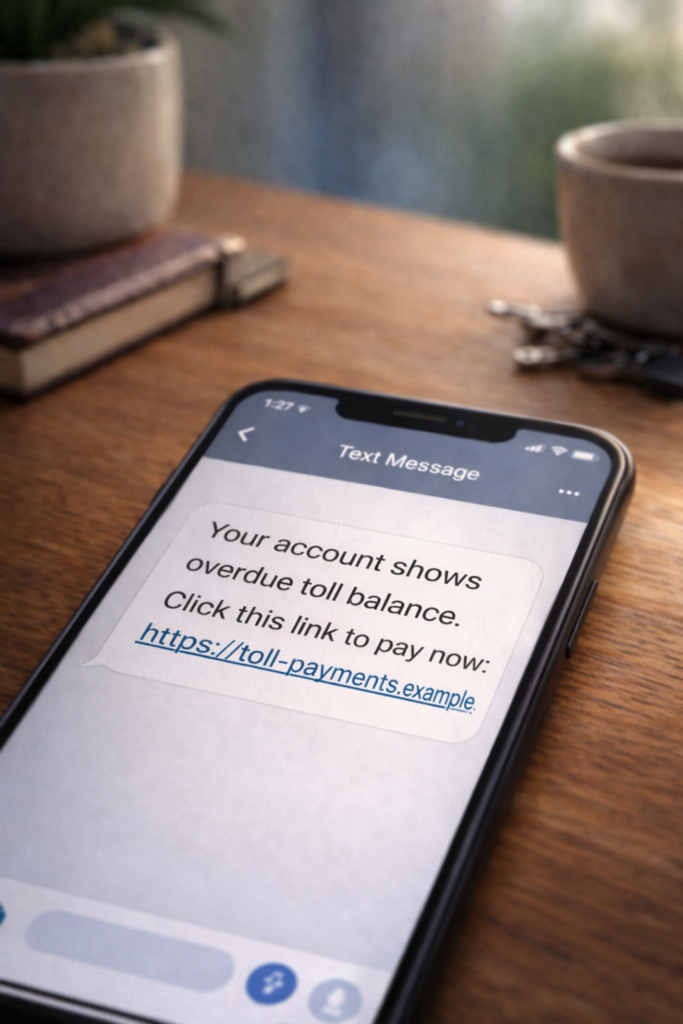
First, take a breath
If you clicked a suspicious link — in a text, email, or social media message — you’re probably wondering whether you just handed a scammer access to your life. The short answer: probably not. Clicking a link alone usually does not compromise your accounts or install malware. What matters most is what you did after clicking.
This guide walks you through exactly what to do based on your specific situation. Whether you tapped the link and immediately closed it, entered a password, downloaded something, or aren’t sure what happened, there’s a clear set of steps for each scenario. Thousands of people click suspicious links every day — even careful, tech-savvy people. What matters now is how you respond.
What clicking a suspicious link can and can’t do
There’s a common fear that simply tapping a link instantly infects your device or gives scammers your information. In reality, most phishing links take you to a fake website designed to trick you into entering information yourself. The link is the bait — not the trap.
Here’s what a suspicious link can do:
- Take you to a fake website that looks like a real login page (your bank, email provider, or a shipping company)
- Prompt you to download a file, app, or software update that contains malware
- Redirect you through tracking links that confirm your phone number or email address is active
- On rare occasions, exploit an unpatched vulnerability on your device (this is uncommon on updated devices)
Here’s what it can’t do just from a click:
- Access your bank account or passwords
- Read your text messages or contacts
- Install software without your permission (on most modern, updated devices)
- Steal money directly from your accounts
The real danger comes when you interact with the page the link takes you to — by entering login credentials, personal details, or downloading files. If you only clicked and closed, you’re likely in good shape.
If you only clicked the link and closed It
This is the most common scenario, and it’s usually the lowest risk. If you tapped a link, saw a page that looked suspicious, and closed it without entering any information or downloading anything, here’s what to do:
- Close the browser tab completely. Don’t just navigate away — close the tab or the browser app entirely.
- Clear your browser cache and cookies. On your phone, go to Settings > your browser app > Clear Browsing Data. Select “Cookies” and “Cached Files.” This removes any tracking data the page may have stored.
- Check for unfamiliar downloads. Open your device’s file manager or Downloads folder and look for anything you didn’t intentionally save. Delete anything suspicious.
- Make sure your device software is up to date. Go to Settings > Software Update (or System Update on Android) and install any pending updates. Updated devices are far more resistant to drive-by exploits.
If you did all of the above, you can move on with confidence. No further action is usually needed.
If you entered a password or personal information
This is where you need to act quickly. If the link brought you to a page that looked like a login screen — and you entered your email, password, Social Security number, or other personal details — treat it as compromised. Scammers design these fake pages to look nearly identical to the real thing, so don’t feel embarrassed. Even experienced people get caught by well-crafted fake login pages and phishing websites.
Take these steps immediately:
- Change the password for whatever account you entered credentials for. Go directly to the real website (type the address into your browser — don’t use any links from the suspicious message) and change your password right away.
- Change that same password anywhere else you use it. If you reuse passwords across multiple sites, change every one of them. This is the most common way scammers turn one compromised password into access to multiple accounts.
- Enable two-factor authentication (2FA) — an extra security step where you enter a one-time code from your phone in addition to your password. Turn it on for email, banking, and social media accounts. For a full walkthrough, see our guide on how to secure your online accounts.
- Check your account activity. Log into the real website and look at recent logins, devices, or activity. Most major services (Gmail, Facebook, your bank) let you see where and when your account was accessed. If you see anything unfamiliar, follow the service’s steps to remove that access.
- Monitor your financial accounts. If you entered banking or payment information, log into your bank directly and look for unauthorized transactions. Contact your bank’s fraud department if you see anything you didn’t authorize.
If you logged into a page that looked real
Some phishing pages are disturbingly convincing. They copy real logos, layouts, even URL structures to make you believe you’re on your bank’s website, your email provider, or a delivery company’s tracking page. If you entered your real username and password on one of these pages, the scammer now has your credentials.
In addition to all the steps in the section above, take these extra precautions:
- Log out of all sessions. Most services have a “Sign out of all devices” option in their security settings. Use it. This forces anyone who might be using your stolen credentials to get kicked out.
- Revoke third-party app access. Check your account’s “Connected Apps” or “App Permissions” settings. Remove anything you don’t recognize.
- Set up login alerts. Enable notifications for new logins on your email and financial accounts so you’ll be notified if someone tries to get in again.
- Watch for follow-up scams. Scammers who successfully phish credentials often follow up with additional messages — posing as the service’s “security team” or claiming your account has been “locked.” Ignore these. Go directly to the real website instead.
If you downloaded a file
Downloads are where the risk escalates. If the link prompted you to download a file — and you opened it — malicious software may have been installed on your device. This is more common on computers than phones, but it can happen on either.
- Disconnect from the internet. Turn off Wi-Fi and mobile data immediately. This prevents any malware from sending your data to the scammer or downloading additional files.
- Delete the downloaded file. Find it in your Downloads folder and delete it. Empty your trash/recycle bin afterward.
- Run a malware scan. On a computer, use your built-in antivirus (Windows Defender on Windows, or XProtect on Mac) to run a full scan. On Android, use Google Play Protect (Settings > Security > Google Play Protect > Scan). On iPhone, malware is rare due to Apple’s security model, but you should still update your iOS immediately.
- Change your passwords from a different device. If you suspect malware is on your device, don’t enter passwords on that device until the scan is complete. Use a different phone or computer to change critical passwords.
- Consider a factory reset if the scan finds something. If malware is detected and can’t be fully removed, a factory reset is the safest option. Back up important files first (photos, documents), then reset the device to its original settings.
If you’re not sure whether you downloaded something, check your Downloads folder. If nothing is there and you don’t remember tapping “Download” or “Install,” you’re probably fine.
If you’re not sure what happened
Sometimes you click a link, the page loads briefly, and you’re not sure whether something happened in the background. Maybe it redirected a few times. Maybe you closed it quickly but aren’t positive you didn’t tap something.
In this case, take the cautious path:
- Clear your browser cache and cookies
- Check your Downloads folder for any unfamiliar files
- Run a malware scan on your device
- Update your device software
- Change passwords for any accounts you’re particularly worried about (email, banking)
- Monitor your accounts over the next week for unusual activity
The combination of clearing data, scanning, and updating covers the vast majority of potential risks.
Signs you should take stronger action
In most cases, the steps above are enough. However, contact your bank or a professional immediately if you notice any of the following in the days after clicking:
- Unauthorized transactions on your bank or credit card statements
- Password reset emails you didn’t request
- Unfamiliar devices or logins on your accounts
- Friends or contacts telling you they received strange messages from your accounts
- Your phone behaving unusually — apps opening on their own, battery draining much faster than normal, or unfamiliar apps appearing
- Being locked out of an account you could previously access
If any of these happen, take the following steps: freeze your credit with the three major bureaus (Equifax, Experian, TransUnion), report the incident to the FTC at ReportFraud.ftc.gov, and contact your bank’s fraud department directly using the number on the back of your card.
Why scammers use suspicious links in the first place
Understanding why these links exist helps you recognize them faster next time. Scammers send suspicious links for three main reasons:
To steal login credentials. The most common tactic. The link leads to a fake login page for a service you use — your bank, email, Amazon, or a delivery company like USPS. If you enter your username and password, the scammer captures them. This is the foundation of phishing scams and drives many of the scam types covered on this site, including USPS delivery text scams and fake password reset emails.
To install malware. Some links trigger a download — an app, a document, or a “software update” that actually installs malicious software. This is more common in email-based attacks targeting computers than in text messages targeting phones.
To confirm your contact information. Even if you don’t enter any information, clicking a link can tell the scammer that your phone number or email address is active and that you’re someone who engages with messages. This makes you a higher-value target for future scams.
How to spot suspicious links before you click
Prevention is always easier than recovery. Here are practical habits that stop most suspicious links from becoming a problem:
- Don’t click links in unexpected messages. If you get a text or email about a delivery, account problem, or payment issue, go directly to the company’s website by typing the address into your browser. Don’t use the link in the message.
- Check the sender. Scam texts often come from random phone numbers or email addresses that don’t match the company they claim to be from. A legitimate message from USPS won’t come from a Gmail address.
- Look at the URL before tapping. On a phone, press and hold the link to preview the URL without opening it. On a computer, hover your mouse over the link. If the address looks odd — random characters, misspelled company names, or unusual domains — don’t click.
- Be skeptical of urgency. Messages that claim you need to “act now” or face consequences (suspended account, missed delivery, legal action) are designed to make you react before thinking. Legitimate companies give you time to respond through normal channels.
For a deeper dive into how scammers create convincing fake websites, see our guide on how to spot fake login pages and phishing websites.
The most important takeaway
Clicking a suspicious link is not a disaster. In most cases, it’s what you do next that determines whether it becomes a real problem. If you didn’t enter any information or download anything, you’re almost certainly fine after clearing your browser data and running a quick scan. If you did enter credentials, changing your passwords and enabling two-factor authentication will close the door in most cases.
Scammers count on panic — they want you to feel like everything is already lost so you’ll make more mistakes. The fact that you’re here, looking for what to do, means you’re already ahead of the game. Take the steps that match your situation, and move forward.
Related resources
- How To Secure Your Online Accounts — A complete walkthrough for locking down your email, banking, and social media accounts with strong passwords and two-factor authentication.
- How To Spot Fake Login Pages and Phishing Websites — Learn the visual and technical clues that separate real login pages from scammer-built fakes.
- I Got Scammed – Now What? A Clear Guide to Your Next Steps — If you’ve already lost money or personal information, this guide covers reporting, recovery, and protecting yourself from further harm.