
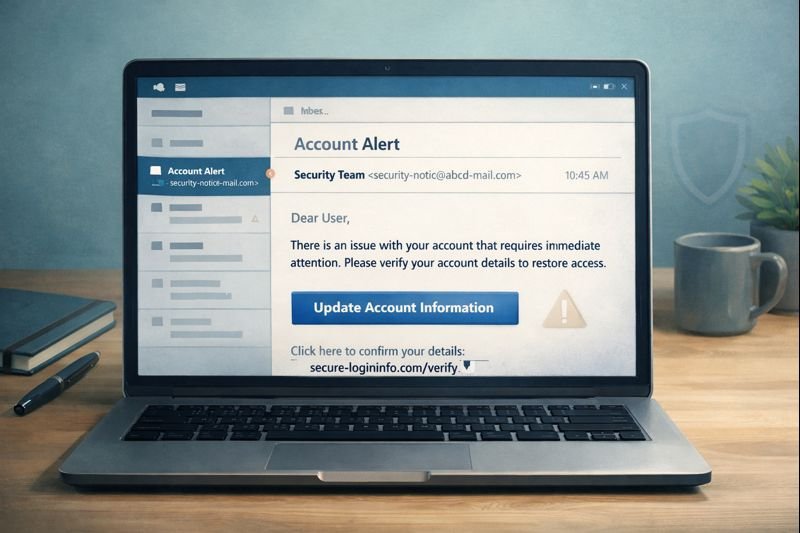
What is email phishing?
Email phishing is a scam where someone sends you an email pretending to be a company or person you trust — like your bank, a delivery service, or a tech company like Apple or Google. The email tries to get you to click a link, open an attachment, or reply with personal information.
The goal is almost always one of three things: steal your login credentials, trick you into entering payment information, or install malicious software on your device.
According to the FBI’s 2024 Internet Crime Report, phishing was the most reported type of cybercrime, with over 193,000 complaints filed. Reported losses from phishing exceeded $70 million, though actual losses are likely much higher since many incidents go unreported.
Phishing works because the emails look real. Scammers copy logos, formatting, and language directly from legitimate companies. The differences are subtle, but once you know what to look for, they become much easier to spot.
The 5 most common types of phishing emails
Phishing emails come in many forms, but most fall into a handful of categories. Here are the five you’re most likely to see in your inbox.
1. Fake account security alert
This email claims your account has been compromised or your password needs to be changed immediately. It typically impersonates Google, Apple, Microsoft, or Amazon.
What it looks like: The subject line says something like “Unusual sign-in activity detected” or “Your account has been temporarily locked.” The email includes a company logo and a large button that says “Verify Your Identity” or “Secure Your Account Now.”
What it asks you to do: Click a link and enter your username and password on what appears to be a login page.
The red flag that gives it away: The sender address. Instead of coming from no-reply@google.com, it comes from something like security-alert@google-account-verify.com. The domain after the @ sign is not the company’s real domain.
2. Fake delivery notification
This email says a package is delayed, undeliverable, or requires action. It impersonates UPS, FedEx, USPS, or Amazon.
What it looks like: The subject line reads “Your package could not be delivered” or “Delivery attempt failed — action required.” The email shows a fake tracking number and a button to “Reschedule Delivery” or “Update Your Address.”
What it asks you to do: Click through to a page that asks for your address, phone number, and sometimes a small “redelivery fee” paid by credit card.
The red flag that gives it away: Legitimate shipping companies don’t email you to ask for payment to release a package. If you’re expecting a delivery, go directly to the carrier’s website and enter your tracking number there. For more on this tactic, see our article on the Fake Package Delivery Text Scam.
3. Bank or payment fraud alert
This email claims there’s suspicious activity on your bank account, credit card, or PayPal account. It impersonates Chase, Wells Fargo, Bank of America, PayPal, or Venmo.
What it looks like: The subject line says “Suspicious transaction on your account” or “Your account has been limited.” The email references a specific (fake) transaction amount to make it feel urgent — something like “A charge of $487.99 was attempted on your account.”
What it asks you to do: Click a link to “review the transaction” or “verify your identity,” which takes you to a fake login page designed to capture your banking credentials.
The red flag that gives it away: Hover over the link (without clicking). The URL won’t go to chase.com or paypal.com — it’ll go to something like chase-secure-login.suspicious-domain.com. Real banks will never ask you to verify your credentials through an email link. For a deeper dive into how scammers create convincing fake bank communications, read our guide on the Bank Impersonation Scam.
4. Fake invoice or subscription charge
This email says you’ve been charged for a product or service you didn’t buy. Common impersonations include Norton, McAfee, Geek Squad, and PayPal.
What it looks like: The subject line reads “Your order confirmation — $399.99” or “Invoice for your annual subscription renewal.” The email includes an official-looking invoice with a phone number or link to “cancel” the charge if you didn’t authorize it.
What it asks you to do: Either click a “cancel” link (which leads to a phishing page) or call a phone number that connects you to a scammer posing as customer support. Once on the phone, they may ask you to install remote access software or provide your bank details for a “refund.”
The red flag that gives it away: You never signed up for or purchased the product mentioned. The “invoice” creates panic about money leaving your account and relies on you reacting before thinking. Our article on Subscription Renewal and Billing Scams covers this tactic in detail.
5. Package held or customs fee scam
This email says a package is being held at customs or a shipping facility, and you must pay a small fee to release it.
What it looks like: The subject line says “Customs clearance required” or “Your package is waiting — pay $3.99 to proceed.” The email uses official-looking language about import regulations or delivery surcharges.
What it asks you to do: Pay a small fee (usually under $10) through a link. The payment page asks for your full credit card number, billing address, and sometimes your phone number.
The red flag that gives it away: The small fee is the bait. Scammers know you’re more likely to pay $3.99 without much thought than $399. Once they have your credit card number, they use it for larger unauthorized charges. Legitimate customs fees are handled by the shipping carrier, not through email links.
What does a phishing email actually look like?
Let’s walk through a specific example — a fake “Your Apple ID has been locked” email — and break down exactly where the deception appears.
The sender name and address: The display name says “Apple Support,” but the actual email address is appleid-support@account-verify-apple.com. The real Apple domain is apple.com. Any email from Apple would end in @apple.com or @email.apple.com — not a lookalike domain with extra words.
The subject line: “Action Required: Your Apple ID Has Been Locked.” The urgency and all-caps “Action Required” are designed to make you react before thinking.
The body text: “We detected unusual activity on your Apple ID. For your protection, your account has been temporarily locked. You must verify your identity within 24 hours or your account will be permanently disabled.” The 24-hour deadline is a pressure tactic. Apple does not permanently disable accounts for failing to click an email link within a deadline.
The button: A large blue button says “Verify Your Apple ID.” Hovering over it reveals the actual URL: https://apple-id-verify.secure-login-page.com/auth. That’s not apple.com. The scammer put “apple” in the subdomain to make it look legitimate at a glance.
The footer: The email includes an Apple logo and a physical address copied from Apple’s real emails. This is meant to make the entire email feel legitimate, but scammers can copy these details easily.
To learn more about recognizing the fake login pages these emails direct you to, read our guide on how to spot fake login pages and phishing websites.
8 warning signs that an email is phishing
Here are the specific things to check when you’re not sure whether an email is legitimate.
1. The sender address doesn’t match the company. The display name says “PayPal,” but the actual address is paypal-billing@secure-payment-alerts.com instead of @paypal.com. Always check the full address, not just the name.
2. The link goes to a different website than expected. Hover over any link before clicking. If an email claims to be from Amazon but the link points to amazon-order-verify.com instead of amazon.com, it’s a phishing attempt.
3. It creates urgency with a deadline. “Your account will be closed in 24 hours” or “Respond immediately to avoid suspension.” Legitimate companies give you reasonable time and multiple ways to contact them.
4. It asks you to “verify” or “confirm” personal information. Your bank already has your Social Security number. Apple already has your password. A real company doesn’t need you to re-enter information they already have through an email link.
5. Generic greetings instead of your name. “Dear Customer” or “Dear Account Holder” instead of your actual name. Companies you have accounts with typically address you by name.
6. Spelling or grammar errors in unexpected places. An email claiming to be from Microsoft that says “Kindly verify you’re informations” didn’t come from Microsoft. Large companies have editorial teams that proofread outgoing communications.
7. An attachment you weren’t expecting. Especially .zip, .exe, or .html files. Legitimate companies rarely send attachments in account-related emails. If a “bank statement” arrives as an unexpected attachment, don’t open it.
8. The “from” domain was registered recently. You can check when a domain was registered using a WHOIS lookup. If apple-account-support.com was registered two days ago, it’s not Apple.
How to protect yourself from phishing emails
These steps won’t just help you recognize phishing — they’ll make it significantly harder for phishing to succeed even if a convincing email slips past your judgment.
1. Hover over links before clicking. On a desktop, move your mouse over any link and look at the URL that appears in the bottom-left corner of your browser or in a tooltip. If the domain doesn’t match the company the email claims to be from, don’t click. On mobile, press and hold the link to preview the URL.
2. Check the actual sender address, not just the display name. Click or tap the sender name to expand the full email address. The display name can say anything — “Chase Bank,” “Apple Support,” “Amazon Customer Service” — regardless of what address actually sent the email.
3. Go directly to the website instead of clicking email links. If an email says there’s a problem with your Amazon account, open a new browser tab and type amazon.com yourself. Log in directly. If there’s a real issue, you’ll see it in your account dashboard.
4. Use a password manager. A password manager like 1Password, Bitwarden, or the one built into your browser stores your login credentials and auto-fills them only on the real website. If a phishing page looks identical to the real one, your password manager won’t be fooled — it checks the domain. If it doesn’t offer to fill in your password, that’s a strong signal you’re on a fake site.
5. Enable two-factor authentication on every important account. Two-factor authentication (often called 2FA) adds a second step when you log in — usually a code sent to your phone or generated by an app. Even if a scammer gets your password through phishing, they can’t access your account without that second code. For a step-by-step walkthrough, see our guide on how to secure your online accounts.
6. Keep your software updated. Updates patch security vulnerabilities that phishing emails sometimes try to exploit through attachments or malicious links. Enable automatic updates for your operating system, browser, and email app.
7. Don’t download unexpected attachments. If you weren’t expecting a file, don’t open it — even if the email appears to come from someone you know. When in doubt, contact the sender through a separate channel to confirm they sent it.
What to do if you’ve been targeted
The steps you need to take depend on how far you got. Here’s what to do in each scenario.
If you clicked the link but didn’t enter any information
1. Close the page immediately. Don’t interact with anything on the site. Just close the browser tab.
2. Clear your browser cache and cookies. This removes any tracking data the site may have stored. In most browsers, go to Settings > Privacy > Clear Browsing Data.
3. Run an antivirus scan. Some phishing sites attempt to download malware in the background. Run a full scan with your antivirus software to check.
4. Monitor for anything unusual. Watch for unexpected emails, login alerts, or changes to your accounts over the next few days. In most cases, simply clicking a link without entering information does not compromise your accounts.
If you entered your password
1. Change that password immediately. Go directly to the real website (type the URL yourself) and change your password. Do this as fast as you can.
2. Change it everywhere else you’ve used it. If you reuse that password on any other accounts — email, banking, social media — change it on those accounts too. Scammers try stolen credentials across multiple sites.
3. Enable two-factor authentication. If it isn’t already on, turn it on now. This adds a layer of protection even if the scammer still has your old password.
4. Check account activity. Look at recent login history, sent messages, and any settings changes. If you see anything you didn’t do, the scammer may have already accessed your account.
If you entered payment information
1. Contact your bank or credit card company now. Call the number on the back of your card. Tell them you entered your card details on a fraudulent website. They can freeze or replace your card and flag unauthorized transactions.
2. Monitor your statements closely. Check for unauthorized charges over the next 30-60 days. Scammers sometimes wait before using stolen payment information.
3. Place a fraud alert on your credit. Contact one of the three credit bureaus (Equifax, Experian, or TransUnion) to place a fraud alert. This makes it harder for someone to open new accounts in your name. You only need to contact one bureau — they’re required to notify the other two.
4. Consider a credit freeze. A credit freeze is stronger than a fraud alert. It prevents anyone from opening new credit accounts in your name until you lift the freeze. It’s free to set up and free to lift.
How to report a phishing email
Reporting phishing helps shut down scam operations and protects other people. Here’s where to report.
Report to the company being impersonated. Most large companies have a dedicated phishing report address. Forward the email to: phishing@paypal.com, reportphishing@apple.com, abuse@google.com, or search “[company name] report phishing” to find the right address.
Report to your email provider. In Gmail, click the three dots next to the reply button and select “Report phishing.” In Outlook, select the message, then click “Report” and choose “Phishing.” This helps your email provider improve its spam filters.
Report to the FTC. File a report at reportfraud.ftc.gov. The FTC uses these reports to build cases against scam operations.
Report to the Anti-Phishing Working Group. Forward the phishing email to reportphishing@apwg.org. The APWG is an international coalition that tracks phishing activity and works to shut down phishing sites.
Report to the FBI’s IC3. For phishing that resulted in financial loss, file a complaint at ic3.gov.
Frequently asked questions about phishing emails
What is an example of a phishing email?
A common example is an email that appears to come from Apple with the subject line “Your Apple ID Has Been Locked.” It uses Apple’s logo, warns of suspicious activity, and asks you to click a button to verify your identity. The button links to a fake website designed to steal your Apple ID password. The giveaway is the sender address — something like appleid@verify-apple-support.com instead of @apple.com.
How can I tell if an email is a phishing scam?
Check three things: the sender’s actual email address (not just the display name), the URL behind any links (hover before clicking), and whether the email creates artificial urgency with deadlines like “respond within 24 hours.” Legitimate companies don’t threaten to close your account if you don’t click an email link by a deadline.
What happens if I click a phishing link but don’t enter anything?
In most cases, clicking a link alone does not compromise your accounts. The main risk comes from entering information on the fake page. However, some phishing sites attempt to download malware, so run an antivirus scan and clear your browser cache after closing the page. If you’re concerned, our guide on what to do after clicking a suspicious link walks through every scenario step by step.
How do I report a phishing email?
Report it in three places: to the company being impersonated (forward the email to their abuse or phishing address), to your email provider (use the “Report phishing” option in Gmail or Outlook), and to the FTC at reportfraud.ftc.gov. You can also forward phishing emails to reportphishing@apwg.org.
Can phishing emails install viruses just by opening them?
Simply opening a plain-text or standard HTML email in a modern, updated email client is very unlikely to install a virus. The risk comes from clicking links, opening attachments, or enabling macros in downloaded files. That said, keeping your email app and operating system updated reduces even the small remaining risk, because updates patch the vulnerabilities that attackers try to exploit.